How we use git
This page explains how we use git across the division. It covers the branching strategy we recommend, why so much of our tooling depends on it, how we shape commits, and how we keep the history of the default branch clean. The mechanics live elsewhere. See how to create a feature branch and common git tasks for the commands themselves, and our list of external git documentation for learning git in depth. There is a terminology section at the end if any of the terms used here are unfamiliar.
Git is not GitLab
It is tempting to treat git and GitLab as the same thing. Git is a distributed version control system which works perfectly well on a laptop with no network connection. GitLab is a "software forge", a service which offers git hosting plus issue tracking, code review, CI/CD and project management around it. There are many other forges, and git predates all of them.
The distinction matters for this page. Some of what we recommend is plain git. Some of it works the way it does only because GitLab keeps a record of how a merge request evolved. We try to be clear about which is which.
Pushing and pulling
Pushing a branch to a remote happens in two stages. The remote is sent the branch HEAD commit and any parent commits it does not already have. The remote then updates the remote branch to point at the new HEAD.
By default this only succeeds if the new HEAD is a descendant of the remote branch's current HEAD. Otherwise the push is rejected, because completing it would drop commits the remote already holds. This is why reshaping a branch you have already pushed needs a force-push, which we cover in rebasing and keeping history clean.
Pulling a branch is the opposite of a push. The steps are identical, with the roles of the remote and local repository reversed.
Our branching strategy
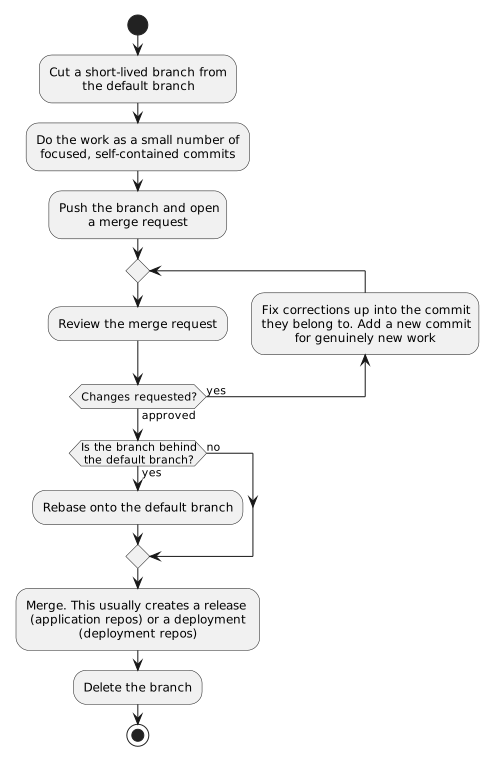
We call our branching strategy the feature branch workflow. It aligns closely with two well-known descriptions, GitHub Flow and Atlassian's Git Feature Branch Workflow. Neither is quite what we do, so what follows is the definition which applies here.
- Cut a short-lived branch from the default branch,
mainin newer projects andmasterin older ones. - Do the work as a small number of focused, self-contained commits.
- Push the branch and open a merge request.
- Where review feedback corrects work already in a commit, fix the change up into that commit. Where it asks for genuinely new work, add a new commit.
- Keep the branch up to date by rebasing onto the default branch, rather than by merging it in.
- Merge once approved. This is usually what produces a release or a deployment.
- Delete the branch.
Two constraints hold throughout. The default branch is the single source of truth, and nothing reaches it except through a reviewed merge request. Branches are short-lived, measured in days rather than weeks. Steps 4 and 5 are the ones people find most surprising, and rebasing and keeping history clean explains why we ask for them.
We do not use a develop branch, release branches, or environment branches. That is what separates
this from Gitflow
and from GitLab's own GitLab Flow, both of which add long-lived branches we have no need for. Two
exceptions are documented. Hotfix branches named release/fix-* let us patch a previous release,
and projects using the USE_MERGE_REQUEST_RELEASE_FLOW variant queue changes on the default branch
and cut releases from a separate release merge request. Both are described in GitLab release
automation.
What the default branch guarantees
The promise the default branch makes depends on what kind of repository it is, and it is worth being precise about the difference.
In an application or library repository, such as a webapp, a Python package or a CI/CD component, the default branch is always releasable, and it is where releases come from. Merging a merge request calculates the next version, updates the changelog and creates a tag and a GitLab release. Deployment is a separate act which happens elsewhere.
In a deployment or infrastructure repository, typically Terraform built from our gcp-deploy-boilerplate, the default branch is always deployable, and it reflects what is actually running. Merging deploys to staging automatically, and production follows through a manual gate. Our continuous integration and delivery standard is explicit that only commits which have landed on the default branch should reach staging or production.
The two meet when a release is rolled out. A release in an application repository produces an artefact, and a change in the corresponding deployment repository pins the new version. That change is often raised for you as a Renovate merge request.
Why our tooling depends on this
This is a practical recommendation rather than a stylistic one. Much of the Unified DevOps Platform is built directly on the assumptions this workflow makes.
- The
release-it:releasejob runs on each merge into the default branch and derives the next version and the changelog from the commits in that merge. See GitLab release automation. - Deployment pipelines treat the default branch as the thing to deploy, as described above.
- GitLab projects are provisioned by our project factory with mandatory merge request approval and branch protection enabled on the default branch as standard. Deviations are detected and corrected by our IaC tooling, so pushing straight to it is not an option in most projects.
- Merge request pipelines, and the security scanning jobs injected into every pipeline, assume there is an open merge request targeting the default branch. See mandatory jobs.
- Renovate, and automerge in particular, assumes a fast-moving default branch which dependency merge requests can land on with little delay.
If your team works differently
This is a strong recommendation rather than a rule. Teams are free to document and follow a different workflow. Be aware, though, that much of the standard Unified DevOps Platform tooling assumes the flow described here, so it may not work out of the box. A team which chooses a different workflow takes on resolving that friction itself.
Feature branches
Feature branches are branches used to develop an individual story. If you are stuck for a name,
{issue-number}-{summary} is a good choice, where {issue-number} is the number of the issue you
are implementing and {summary} is a brief summary formatted-like-this. Following this convention
also enables some useful built-in
automation
in GitLab. See how to create a feature
branch for the commands.
Keep branches short-lived. A branch which stays open for weeks drifts further from the default branch with every merge someone else makes, which makes it harder to keep up to date and harder to review. If a piece of work is too large to land in days, it is usually worth splitting it into several merge requests which each stand on their own.
Structuring the branch
Tell a story with your branch. Each commit should implement one step towards implementing the story. It is kind to a reviewer to allow your merge requests to be reviewed commit by commit, so try to keep commits small, on topic and self-contained.
Commits
Commit messages should follow the Conventional
Commit specification. This is our default because it is what
our release automation reads to calculate the next version number, and most of our projects enforce
it with commitlint. Projects which genuinely do not use release automation may choose otherwise.
Either way, commit messages should start with a single line (ideally less than 50
characters) summarising the change, for example:
fix: prevent terraform cycle error
Some points of note:
- Commit messages (and merge request titles) should use the imperative mood, e.g. "add user to group" instead of "added user to group".
- The summary line is case insensitive, however, it's best to be consistent within projects. With this in mind, the recommendation is to use lower case by default, unless a project has specifically suggested otherwise in the README.md.
- As with an email subject line, your commit summary does not need a full stop (and with a 50 character limit you’ll want to save every character you can).
If the repository has logical "sections", you may include the section in the "scope" of your commit message. For instance, a Django webapp is usually composed of several applications. Using the application name as a section is a good idea, for example:
# Including the "ui" scope when using the Conventional Commit specification.
feat(ui): add awesome profile page

# Including the "ui" scope when not using the Conventional Commit specification.
ui: add awesome profile page
Optionally, you can include a longer message in the commit "body". The body must begin one blank line after the summary line and can be useful to explain in more detail how the commit implements what it implements. It may also explain how the commit fits into the overall progression of the story.
Finally, where necessary, you can use a GitLab issue closing pattern in the commit body to automatically close an issue. However, if only the merge request as a whole closes the issue, use the closing pattern in the merge request description instead.
The following is an example of a commit message which includes a summary line, a body message, and an issue closing pattern.
fix(mediaplatform): make channel field non-NULL

Make the "channel" field of mediaplatform.models.MediaItem non-NULL. This
enforces that all media items will have an associated channel in future which is
required by #1234.

Add a pre-migration hook which assigns all media items which currently have a
"NULL" channel to an "orphan" channel. If there are no items with a NULL channel
the orphan channel is not created.

The orphan channel has blank edit and view permissions and as such will only be
available to admins.

Closes #1234
Some additional resources on git commit messages:
- The Conventional Commit specification
- How to write a commit message
- A note about git commit messages
Rebasing and keeping history clean
Steps 4 and 5 of the workflow above are where most of our history hygiene comes from, and rebasing is the most misunderstood part of how we work. So it is worth starting with why we care rather than with the commands.
The history of the default branch is not a diary of how the work happened. It is a record other
people read later, often under pressure. A clean, linear history is what makes git bisect able to
find the commit which introduced a bug. It is what makes a single commit safe to revert. It is what
release-it reads to decide the next version number and to write the changelog. Every "fix review
comments" or "merge main into branch" commit which lands on the default branch makes those things a
little worse.
Rebasing is the tool which lets us get
there. While developing, the rule is still "commit early, commit often". Before the branch merges,
use git rebase to reorder, combine and reword those commits into the story you actually want to
leave behind.
Updating your branch
When the default branch has moved on and you need those changes, rebase onto it rather than merging it in.
git fetch
git rebase origin/main
Running git merge main on a feature branch works, but it has two costs. It pulls unrelated commits
into your branch, so the merge request diff no longer shows only the change you are proposing. It
also adds a merge commit which is not part of that change, and which ends up on the default branch
when the branch merges. Rebasing avoids both. Your commits are replayed on top of the current
default branch, and the merge request goes back to showing just your work.
GitLab also offers a Rebase button on a merge request when the branch is behind and there are no conflicts, which does the same thing without checking the branch out locally.
Addressing review feedback
When a reviewer's comment points at a problem in a particular commit, fix it up into that commit rather than stacking a follow-up on top. This is the practice which keeps the guarantees above intact, because every commit which lands on the default branch should stand on its own.
This applies where the feedback corrects work already in a commit. Where it asks for genuinely new work, add a new commit instead. The aim is a history which reads as though the branch was written correctly first time, not a rule that nothing may ever be added during review.
In outline, that means:
git commit --fixup <sha>
git rebase -i --autosquash origin/main
git push --force-with-lease
See common git tasks for the full walkthrough,
including what to do when the rebase hits a conflict. Prefer --force-with-lease over --force. It
refuses to overwrite work on the remote which you have not seen, which protects you if someone else
has pushed to the branch.
The fear which often stops people doing this is that force-pushing destroys the reviewer's context. On GitLab it does not. GitLab records a new merge request diff version on every push and keeps the previous ones, so a reviewer can compare any two versions on the Changes tab and see only what has changed since they last looked. The commits you rewrote are still reachable from those stored versions.
When not to rewrite history
Rewriting the history of your own feature branch is expected and safe, including after you have opened a merge request. That is the whole point of the practice described above.
What you must not do is rewrite history on the default branch, or on any other protected branch. Those branches are shared by everyone, and in most of our projects branch protection will stop you anyway.
The one case which needs a conversation is a feature branch somebody else has checked out. Rewriting it under them makes their next pull awkward. On short-lived branches owned by one author this is rare, so check before you force-push a branch you are sharing rather than avoiding rebasing altogether.
Terminology
This section briefly describes some of the terminology around git. It's not intended to be exhaustive.
A blob is a set of bytes. It has a name which is the SHA1 hash of its contents.
A tree is a set of blobs in a directory/filename hierarchy. It has a name which is the SHA1 hash of its contents.
A commit is a message describing a tree, the name of a tree and a list of names of "parent" commits. Its has a name which is the SHA1 hash of its contents. Recursively following parent links from a commit yields the set of "descendent" commits.
A branch is an alias for a commit. Its content is the name of the commit it references. Its name is human-readable. Unlike commits, blobs or trees a branch's name can stay the same even if its content changes. The commit pointed to by a branch is called the HEAD of the branch.
The default branch is the branch which we agree as a team reflects the current state of the
product. It is called main in newer projects and master in older ones, and it is the branch
checked out when a repository is cloned. Git itself treats it like any other branch. By convention,
by branch protection and by our CI configuration, it is the branch we release or deploy from.
A remote is an alias for a remote git repository. It maps a human readable name to a location.
For example, "origin"→"git@gitlab.developers.cam.ac.uk:uis/devops/docs/guidebook".
Summary
We recommend the feature branch workflow. The default branch is the source of truth, work happens on short-lived feature branches, and changes land through a reviewed merge request which usually cuts a release. Keep the history that lands on the default branch clean by rebasing onto it rather than merging it in, and by fixing review feedback up into the commits it belongs to. GitLab keeps every merge request diff version, so force-pushing a feature branch does not cost your reviewer their context. Teams may work differently, but our tooling is built around this flow and will need coaxing if you depart from it.
See also
- How to create a feature branch, the commands for starting a piece of work.
- Common git tasks, recipes for amending, squashing, rebasing and resolving conflicts.
- GitLab release automation, what happens when your merge request merges.
- Reviewing issues, how we approach review as a division.
- Merge requests, the labels and roles used during review.
- External git documentation, for learning git itself.